Stop 1 of 3 on the round trip
Import highlights
The trip starts on the device, before Relego is involved at all. Your Kindle or Kobo writes highlights to a file, then Relego reads that file into its library.
Your reader’s file
Section titled “Your reader’s file”| Reader | File to import | Note |
|---|---|---|
| Kindle | documents/My Clippings.txt |
Contains device highlights, notes, and bookmarks |
| Kobo | .kobo/KoboReader.sqlite |
.kobo is a hidden folder |
Relego reads the quote, book title, and author. You do not need SQLite tooling for Kobo, upload the file as-is.
1. Start the server
Section titled “1. Start the server”The server is where your highlights live. It is a single Docker container with a
SQLite database at /data/relego.db, one file on your disk that you can back
up by copying it.
From a checkout of the repository, or any directory containing the project’s
docker-compose.yml:
docker compose --profile app up -dCheck it came up:
docker compose psThen open http://localhost:8080. That is the Relego web UI, served by the server itself. If it loads, you are ready to import.
The server also runs the recap scheduler in the background. It does not need to be reachable from the internet.
Mail settings can wait
Section titled “Mail settings can wait”The server reads its mail settings from the environment. Put them in a .env
file next to docker-compose.yml:
RELEGO_KINDLE_EMAIL=your-name@kindle.comRELEGO_SMTP_HOST=smtp.your-relay.exampleRELEGO_SMTP_PORT=587RELEGO_SMTP_USER=relegoRELEGO_SMTP_PASSWORD=your-relay-passwordYou do not need working mail settings to import. Come back to this when you reach Deliver, which covers choosing a relay; the environment variable reference has the full list.
2. Get your highlights in
Section titled “2. Get your highlights in”Now it’s time to import higlights into Relego. You can drag and drop them to the web interface or, if you prefer a terminal, you can use the CLI.
The page reports what it added when the upload finishes. Uploading the same file twice does not create duplicates, so re-uploading after a few more reading sessions is the normal way to keep the library current.
Kindle
Section titled “Kindle”Connect your Kindle over USB and wait for it to appear on your computer. Open
http://localhost:8080, go to Import, then drop in
documents/My Clippings.txt or click to browse for it.
My Clippings.txt does not include highlights made in Kindle mobile or desktop
apps. Those remain in Amazon’s cloud.
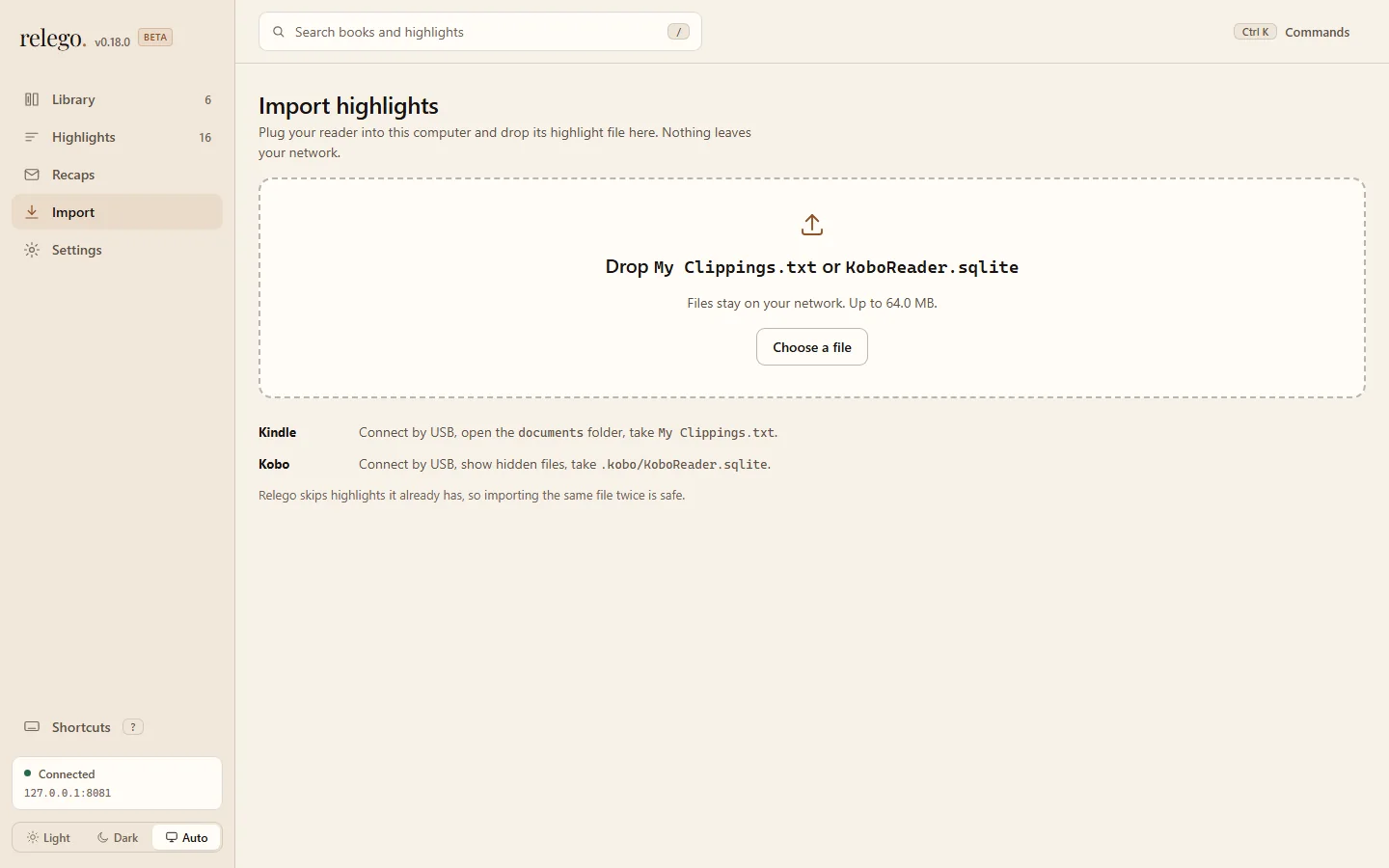
Connect your Kobo over USB and wait for it to appear on your computer. Because
.kobo is hidden, enable hidden files in your file manager or copy the database
off the device before uploading it. In the web UI, go to Import, then drop
in .kobo/KoboReader.sqlite or click to browse for it.
You have a library. Deliver your first recap →